The following sections will walk you through the steps necessary to get started running background checks with the Checkr API.
Please reach out to clients@checkr.com before you start integrating with our API to learn about our approval process for production.
Before gaining access to the Checkr APIs and Dashboard, you must be properly credentialed to request background checks. Work with your Customer Support Representative to provide the required documentation, and complete the credentialing process.
For more information, see Getting credentialed.
Checkr provides customers with the option of a "staging account" that can be used to test your integration and use the Checkr Dashboard prior to deploying your integration to your production account. The staging account can be set up to match the settings from your production account and allows for submission of background check orders without incurring any billable events. To accomplish this, Checkr uses candidate "mocked" data setups that result in predefined background check results, mimicking the most common outcomes you will encounter in your production account.
Once your staging account has been created, Checkr will provide you with a document containing this mocked candidate data.
- 1
Submit a staging account request
Use our Help Center article to guide you through the request to create a staging account.
Staging accounts can only be created using a production account that has already been authenticated.
- 2
Configure your staging account
Upon successful creation of the staging account, the email address specified in the staging account request submission will receive an email from Checkr providing a temporary password to the account and allowing the recipient to create a permanent password. This initial user will have an Admin user role which allows them to invite other users to the account as they see fit.
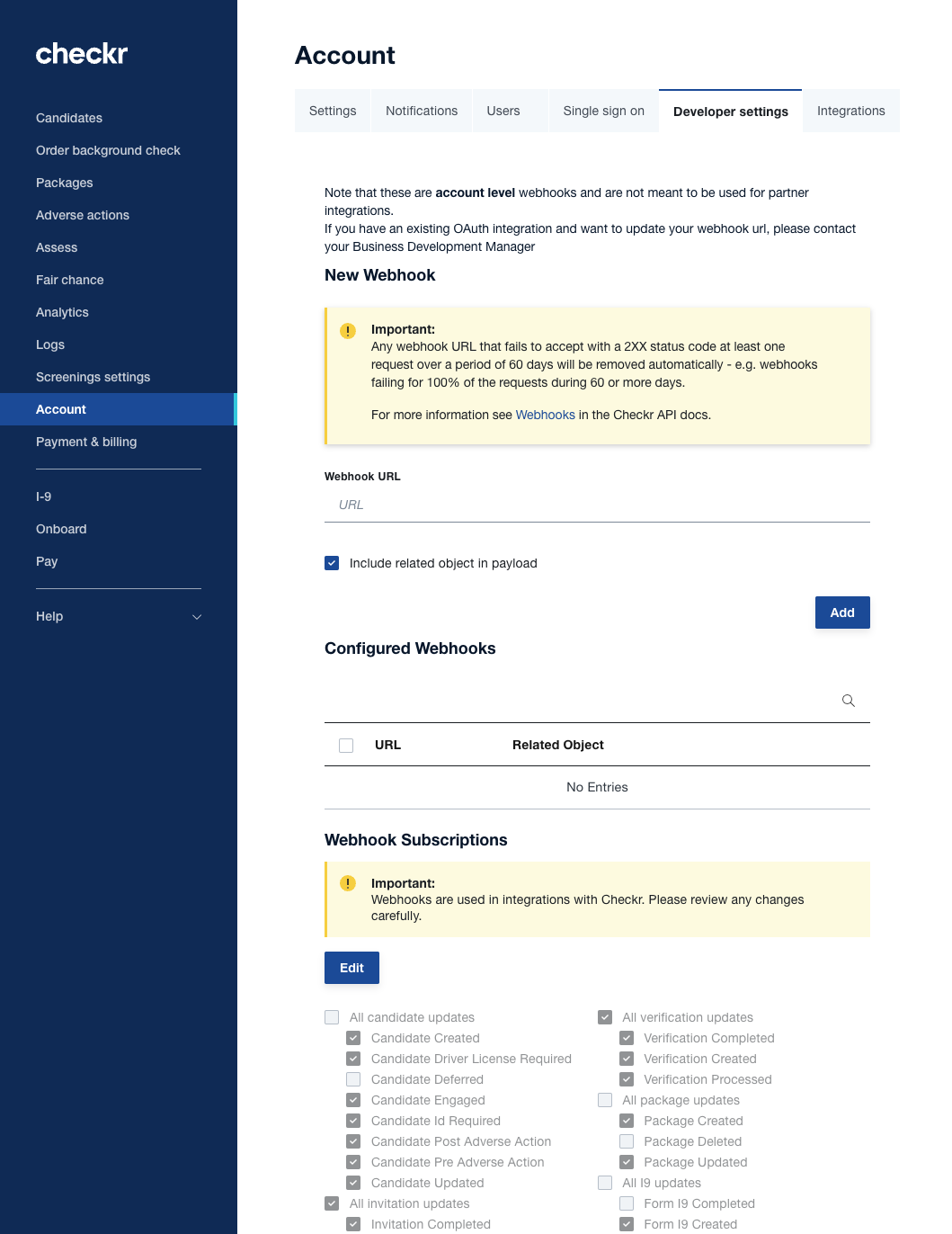
Once you have Admin access to the staging account, go to Account Settings > Developer Settings. On this page, in the "API keys" section click Create Key and choose Secret. Use the resulting API key to authenticate all of your API calls to this staging account.
To enable webhooks for the account, from the Account Settings > Developer Settings page scroll down to New Webhook. Enter a URL and click Add to create a new webhook. You may also use this page to select the webhook notifications you wish to receive from Checkr.
The staging account's API calls, responses, and webhooks follow the same pattern and response structure as those of the production environment.
The staging account uses the API host URL: https://api.checkr-staging.com/v1 for all calls.
To facilitate building with the Checkr API, Checkr staging accounts support a number of mocked candidate profiles that will return predictable results. This allows you to test a number of different report outcomes and other workflows before moving your integration to your production account. To ensure the desired outcome, you must enter the candidate data exactly as provided in this mocked candidate data document or the resulting report will remain in pending status indefinitely.
Reports created in the staging account will typically complete within minutes of submission, though this can vary depending upon the relative load on the staging environment servers.
Checkr's product and development teams also use the staging environment to test new functionality. It is therefore possible that one or more of the mocked candidate records may not return the expected results. If you encounter unexpected returns for a mock data candidate, please test a different candidate from the mocked data document with a similar predefined outcome. If the problem persists, reach out to your Checkr Customer Support Manager to troubleshoot the issue.
The staging account is built to mimic the production environment and allow developers to build without running production background screenings and incurring a charge. Staging account uses mocked candidate data, and does not support the following functionality available in the production environment:
- Post adverse action is not supported
- Invitations do not expire
- Invoices are not created
- Analytics are not available
Please reach out to your Checkr Account Executive or Customer Success Manager if you require additional status, report, or state test cases.
Once you have access set up to log into Checkr, go to Developer Settings in the Checkr Dashboard. Click Create Key > Secret to generate a new Secret Key for your staging environment.
Your production API key is also available from this Developer Settings page. Note that your production key will not be enabled for Reports until you contact clients@checkr.com and request that your account be enabled for live requests.
For more information on using Checkr's Staging environment, see the Requesting a Staging Account section.
Checkr provides support for several API clients, allowing you to explore the Checkr APIs. Download and install Postman or Insomnia, then click the buttons below to install the Checkr APIs. Or use our OAS3 API spec to work with the tooling of your choice.


Configure your API client using the API key from the Developer Settings page in your Checkr Dashboard. Then use your local client to execute any Checkr API requests. We provide sample parameters and payloads throughout these developer guides to help you in your journey.
Checkr APIs are updated frequently. Use your selected method to reimport our APIs to evaluate our most recent versions.
Checkr API host URLs:
- Production:
https://api.checkr.com/v1 - Staging (if you have been given access):
https://api.checkr-staging.com/v1
Use HTTP Basic authentication to authenticate with Checkr, with your API key as the username and an empty password. When using curl, use the -u option to specify your API key. (Note the colon following the API key in the examples. It tells cURL to send an empty password.)
curl https://api.checkr.com \
  -u YOUR_SECRET_API_KEY:
Note that staging environment requests are free and return fake data. Once you are production-ready, please email clients@checkr.com and we will enable live requests.
Create a Candidate by passing the required PII to Checkr.
curl -X POST https://api.checkr.com/v1/candidates \
  -u YOUR_API_KEY: \
  -d first_name=Michael \
  -d middle_name=Gary \
  -d last_name=Scott \
  -d email=michael.scott@dundermifflin.com \
  -d phone=2035408926 \
  -d zipcode=06831 \
  -d dob=1964-03-15 \
  -d ssn=111-11-2001 \
  -d driver_license_number=981736076 \
  -d driver_license_state=CT \
  -d copy_requested=true \
  -d 'work_locations[][country]=US'
Remember to replace YOUR_SECRET_API_KEY with your Secret API key. See Candidates for more details on creating Candidates.
Notes:
- The Candidate object represents the candidate to be screened.
- The
copy_requestedboolean captures whether or not the candidate has requested a copy of their background check upon completion. Iftrue, Checkr will automatically send a copy of the background check to the passed email address on your behalf. - If using a Checkr-hosted candidate experience, the only strictly required parameter for creating a Candidate in Checkr is
email. We recommend that the candidate's phone number also be provided when creating the Candidate object, as it will be required to authenticate the candidate when they log into the Candidate Portal. - If using a custom self-hosted flow, the required attributes include
first_name,middle_nameorno_middle_name,last_name, anddob. - If the Report's package includes any criminal check,
ssnandzipcodeare required attributes. - If requesting a Motor Vehicle Report, Checkr requires
driver_license_numberanddriver_license_state. - Other Candidate-specific parameters are defined in the Candidate resource.
{
  "id":"551564b7865af96a28b13f36",
  "object":"candidate",
  "uri":"/v1/candidates/551564b7865af96a28b13f36",
  "created_at":"2018-08-17T01:08:18Z",
  "first_name":"Michael",
  "last_name":"Scott",
  "middle_name":"Gary",
  "mother_maiden_name":null,
  "dob":"1964-03-15",
  "ssn":"XXX-XX-2001",
  "email":"michael.scott@dundermifflin.com",
  "zipcode":"06831",
  "phone":"2035408926",
  "driver_license_state":"CT",
  "driver_license_number":"981736076",
  "copy_requested":true,
  "previous_driver_license_state":null,
  "previous_driver_license_number":null,
  "adjudication":null,
  "custom_id":null,
  "no_middle_name":false,
  "report_ids":[],
  "geo_ids":[]
}
Checkr responds immediately with the resulting Candidate object, which includes the ID of the Candidate and a URI that points to the new Candidate object. Store the ID for this new Candidate object, which you'll need when creating a Report in the next step.
Use the Invitations resource to order a background check using the Checkr-Hosted Apply Flow. Checkr will send an email to the candidate, inviting them to provide their information and consent. Once the invitation is completed a Report is automatically created. The invitation is valid for 7 days, during which Checkr will send a follow-up notice every 24 hours, reminding the candidate to complete their invitation. If 7 days pass and the candidate has not yet completed the invitation, the invitation will expire and you must create a new invitation to proceed with the candidate.
curl -X POST https://api.checkr.com/v1/invitations \
  -u YOUR_API_KEY: \
  -d candidate_id=551564b7865af96a28b13f36 \
  -d package=dunder_mifflin_executive \
  -d work_locations[][state]=CA \
  -d work_locations[][city]=San+Francisco
Parameters required to Create an invitation:
candidate_id: the ID of the candidate for whom the Invitation is created.package: the Package to use for the background check.work_locations: the candidate's work location, described using country, state, and city. (ISO-3166 alpha-2 format country code, two letter state code, and the name of the city)node(optional): thecustom_idof the node associated with the background check. Required if any nodes exist on the account.
The work_location parameter is used by Checkr to determine compliance requirements for background check reports ordered through the Checkr Hosted Apply Flow. Checkr uses the candidate work location to apply the appropriate state- and city-based fair hiring laws, disclosures, and adverse action procedures. If a city is not provided, Checkr uses the state-based regulation.
{
    "id": "551564b7865af96a28b13f36",
    "object": "invitation",
    "uri": "/v1/invitations/551564b7865af96a28b13f36",
    "invitation_url":
"https://apply.checkr.com/invite/try-checkr/290f9d6d6e46/test",
    "status": "pending",
    "created_at": "2015-05-14T17:45:34Z",
    "expires_at": "2015-05-21T17:45:34Z",
    "completed_at": null,
    "deleted_at": null,
    "package": "dunder_mifflin_executive",
    "candidate_id": "551564b7865af96a28b13f36",
    "report_id": null
    "tags": []
}
Use the Checkr Candidate ID you have retrieved from Create a Candidate, the Package "slug" (as selected in step Selecting Packages), and the candidate's work location to create an Invitation.
Checkr requires Candidates to provide only information that is required for the screenings contained in the Package (such as SSN for criminal screenings, driver license number and state for MVR).
Store the resulting Report ID and any of the requested Screening IDs. The ID for this new Report object is required to retrieve the Report. (Checkr will return IDs for all Screenings included in the requested Package. All other Screening IDs will be returned null.)
If webhooks are enabled, Checkr pushes a status change webhook event to the customer account's webhook URL with the structure shown below.
{
  "id": "507f1f77bcf86cd799439011",
  "object": "event",
  "type": "report.completed",
  "created_at": "2014-01-18T12:34:00Z",
  "data": {
    "object": {
      "id": "4722c07dd9a10c3985ae432a",
      "object": "report",
      "uri": "/v1/reports/532e71cfe88a1d4e8d00000d",
      "created_at": "2014-01-18T12:34:00Z",
      "received_at": "2014-01-18T12:34:00Z",
      "status": "complete",
      "result": "clear",
      "package": "driver_pro",
      "source": "api",
      "candidate_id": "e44aa283528e6fde7d542194",
      "ssn_trace_id": "539fd88c101897f7cd000001",
      "sex_offender_search_id": "539fd88c101897f7cd000008",
      "national_criminal_search_id": "539fd88c101897f7cd000006",
      "county_criminal_search_ids": [
        "539fdcf335644a0ef4000001",
        "532e71cfe88a1d4e8d00000c"
      ],
      "state_criminal_search_ids": [
        "539fdcf335644a0ef4000003",
        "532e71cfe88a1d4e8d000004"
      ],
      "motor_vehicle_report_id": "539fd88c101897f7cd000007"
    }
  },
  "account_id": "8e122cc56b8fa82d33c6118a"
}
Use the resulting Report status (or other data elements) to execute subsequent workflows in your application or program.
Subscribing to webhooks is the recommended approach for accessing the report information and status, since it provides near real-time updates and frees the customer from having to poll our API for this information.
While Checkr recommends listening to the report.completed webhook to retrieve the results of a report, you can also retrieve the same information by performing a GET request to the specific URL of the report.
Retrieve the Report created in the previous step by using your Secret API key and Report ID in the cURL command shown below.
curl -X GET https://api.checkr.com/v1/reports/a13f4827d8711ddc75abc56ct \
-u YOUR_API_KEY:{
"id": "a13f4827d8711ddc75abc56ct",
"object": "report",
"uri": "/v1/reports/a13f4827d8711ddc75abc56ct",
"status": "complete",
"result": "clear",
"created_at": "2018-08-17T01:10:21Z",
"completed_at": "2018-08-17T01:12:26Z",
"revised_at": null,
"upgraded_at": null,
"turnaround_time": 52,
"package": "dunder_mifflin_executive",
"tags": [],
"adjudication": null,
"assessment": null,
"source": "api",
"candidate_id": "551564b7865af96a28b13f36",
"county_criminal_search_ids": [],
"municipal_criminal_search_ids": [],
"document_ids": [],
"drug_alcohol_clearinghouse_id": "5b64c62b67abb4002d3ec763",
"federal_criminal_search_id": "5b64c62b67abb4002d3ec763",
"global_watchlist_search_id": "5b64c5cf67abb400353ec6f7",
"national_criminal_search_id": "5b64c5cf67abb400353ec6f5",
"personal_reference_verification_ids": [],
"professional_reference_verification_ids": [],
"sex_offender_search_id": "5b64c5cf67abb400353ec6f6",
"ssn_trace_id": "5b64c5cf67abb400353ec6f3",
"state_criminal_search_ids": [],
"terrorist_watchlist_search_id": "5b64c5cf67abb400353ec6f7",
"facis_search_id": null,
"arrest_search_id": null,
"motor_vehicle_report_id": null,
"self_disclosure_ids": []
}Note that the Report is now a full Report with a status of clear, indicating that no violations or criminal background have come up for this Report.
See Embedding resources if you wish to embed the full contents of individual screenings (SSN Trace, Sex Offender Registry Search, Global Watchlist Search) in the server response. You can also retrieve those resources using the IDs provided in the server response.
Webhook responses and completed Reports both contain the same information about the results of a criminal screening: the status of the report which can be complete, the result of the report which can be null, clear, or consider, and the assessment of the report, which can be null, eligible, review, or escalated.
| Field | Values | Meaning |
|---|---|---|
status | pending, complete, suspended, paused, dispute, canceled | Status of the report. canceled if and only if all screenings, including SSN Trace, within the report were canceled. complete if at least one screening was completed. paused if the report is awaiting a Review Action decision to continue or skip. |
result | null, clear, consider | Overall screening outcome |
assessment | null, eligible, review, escalated | Assess result (if enabled) |
A completed report with result of clear can be interpreted as that report having no items listed on the candidate's record that must be reviewed. A result of consider indicates that there are items on the candidate's record that may require consideration.
A report contains an assessment if the account has Assess enabled. The assessment is returned as eligible, review, or escalated, according to the customer rules defined in Assess. For more information, see Assess in the Checkr User Guides.
In maintaining a compliant process as per FCRA legislation and EEOC guidelines, Checkr does not make any eligibility or hiring decisions (adjudicate) on our customers' behalf.