Checkr uses webhooks to communicate asynchronous changes on objects created with the API. Each time an event that you subscribed to occurs, Checkr submits a POST request to the webhook URL designated in your Partner Application with information about the event. For webhooks configured through Partner Applications, include_object is enabled by default, which means that the object referenced in the event will be returned as part of the payload.
Checkr supports the use of HTTPS as well as AWS Simple Notification System (SNS).
The endpoint must be public, and Live environment webhooks must be HTTPS. While we do accept HTTP in the Test environment, as a general rule of thumb we recommend using the HTTPS protocol. Checkr also supports (but does not require) the Basic Auth method of authentication by adding username:password@ in front of the hostname. These credentials must be URL escaped.
https://{user}:{password}@{hostname}/{path}
For example:
https://dw69ds8zg7yt:tmdghtwer999p2q3@partnerinc.com/webhooks/checkr
We also support webhook transmittal using Amazon SNS. To use SNS, your Access Key must have only the "Publish to SNS" IAM permission policy configured.
sns://{key_id}:{access_key}@{region}/{topic_owner}/{topic_name}
For example:
sns://AKI95AMUAD5K:a2n66fVKX7%2BYJKid3@us-east-1/12048/checkr
Your endpoint should respond to Checkr webhooks as quickly as possible. To acknowledge receipt of a webhook, your endpoint must return a 2xx HTTP status code. This status code should only indicate receipt of the message, not acknowledgment that it was successfully processed by your system. Any other information returned in the response headers or response body is ignored.
If a webhook is not successfully received for any reason, Checkr will continue trying to send it every minute for 10 minutes, then every hour for 24 hours. Webhooks failing for more than 7 consecutive days are automatically deleted.
We pass along a hash signature with each request in a header X-Checkr-Signature. The hash signature is generated with the HMAC algorithm, using your client_secret as a key and a SHA256 digest. When you receive a request, you can compute a hash and ensure that the one from Checkr matches.
Example hash signature computation:
printf "$compact_json" | openssl sha256 -hmac "$PARTNER_APP_CLIENT_SECRET"
In this example, $compact_json is the "non-pretty print" version of a JSON object. For example, you can get the compact version of a json file with the jq tool with: compact_json=$(jq -c < example_response.json).
Code examples on how to do this can be found here.
The key used to compute the hash is your application's client secret, not an account-level API key or a customer's access token.
Any webhook event transmitted for an object requested using a customer's access_token will contain a signature in its header that can be verified using your client_secret.
Your Partner Application is subscribed to all webhook events by default, which include notifications for the resources Account, Candidates, Invitations, Verifications, Reports, Adverse Actions, and Packages. While the webhook event type is generally descriptive of how the object has been updated, we recommend consuming the object payload rather than relying on the event type itself. Each event describes the creation or update of its contained object, so it’s good practice to consume that payload as if you had made a call to retrieve the resource yourself.
While webhooks are helpful for updates, they are not foolproof. In some cases, report updates can be sent in rapid succession based on multiple events within the Checkr environment, and may be "mis-heard". There are some additional recommendations for guarding against duplicate and missed notifications in the API documentation.
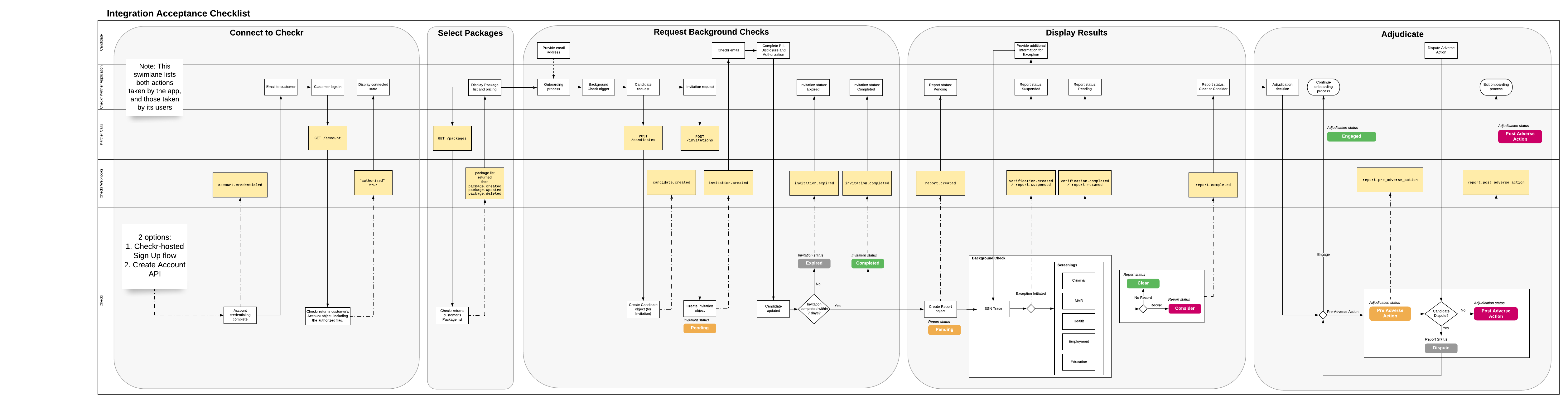
The following table provides the most common sequence for the most common webhook events. This list is not exhaustive and does not describe all sequences. In any given cycle, some events may not occur, and others may occur in an order different than that listed here.
Most webhook events proceed in the following order.
| Event | Description |
|---|---|
account.connected | Your customer successfully completed the signup or signin flow. The code for that customer is available as a URL parameter in the application’s redirect_uri. |
account.credentialed | Your customer’s account has been successfully credentialed to use Checkr. If your customer's Checkr account is already credentialed, this webhook will be issued immediately after the authorization flow is completed. |
token.deauthorized | Your customer has deauthorized your application using the Checkr Dashboard. |
candidate.created | A new Candidate has been created. |
invitation.created | An Invitation has been created. |
invitation.cancelled | An Invitation has been cancelled from the Checkr Dashboard. |
invitation.expired | The Invitation has expired. |
invitation.completed | An Invitation has been completed. |
report.created | A new Report has been created. |
candidate.driver_license_required | An exception has been raised requiring a copy of the candidate's driver license. |
verification.created | A verification has been created and a request to upload a document or enter the data has been forwarded to the candidate. |
report.suspended | A Report has been suspended. Checkr is waiting for the candidate to provide additional documentation. |
verification.completed | A document has been uploaded or data has been entered by the candidate. |
verification.processed | The data gathered by the verification has been processed manually or automatically and the background check can proceed. |
candidate.updated | A Candidate has been updated. |
report.resumed | A Report has resumed. (The candidate has provided documentation to a previously "suspended" Report.) |
report.completed | A Report has been completed. |
report.pre_adverse_action | The Pre-Adverse Action notice has been sent to the candidate of that report. |
report.disputed | A Report has been disputed by a candidate. Once a dispute has been completed, Checkr will trigger the report.completed webhook again with the appropriate Report status. |
report.engaged | A Report has been adjudicated as "engaged". Use this event to track either all candidates you have officially engaged, or simply those candidates with a "consider" background check report that you have engaged. This can be triggered either from an API call or from the dashboard ("Engage" button). |
or
| Event | Description |
|---|---|
report.post_adverse_action | The Post-Adverse Action notice has been sent to the candidate of that report. |
Customers will see webhook logs for all events triggered from all partner applications which they use. Partners will see webhook logs for all events triggered by their customers' access token.